Thursday, September 28, 2017

Report Driving car game Wunderlich and Ramirez Calvo


In this post you will be informed about how we worked during the third term with the car driving exercise. At the end of the second term we were working with a program, called Scratch. Half of our activities were with this program. With Scratch we learned a lot of things, which we will tell you later. On the other hand you will be informed about which were our problems, and how we fixed them. Also you are going to read about our achievements in the car driver game, which were the blocks that we used and how they work.

We had to create a game called “Driving Game”, which has the low difficulty level. This game started with a red car, which had some scripts and an oval track. A script is a consignment that you give to a character, in this case the car, so that it does what you want, for example: drive on the track. We are going to tell you later which were those scripts.


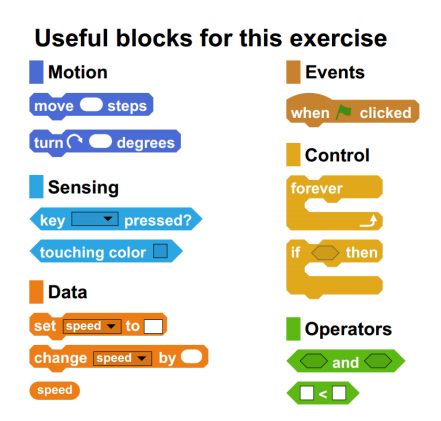
We had to do five different activities. To perform these activities we had to use some blocks obligatory. If we didn’t use one or more of those blocks, we were doing something wrong. So, for us, these blocks were very helpful!


If we didn’t have that extra help, we would not use the operators, and we would probably have something wrong. But operators were at first, a problem for us, because we didn’t know how to use them. But we fixed the problem by asking a classmate. When we understood how to use them, they helped us a lot and we were able to correct some things that we had wrong in our game.

In the following image, you will see which were the blocks, that the car has at the beginning of the game.


The first exercise was to make the car drive around the race and now we are going to explain you which blocks did we use to make that possible. We add the following blocks: If you press the right arrow key, the car will turn five degrees to the right. If you press the left arrow key, the car will turn five degrees to the left. If you press the up arrow key, the car increase the speed. And if you press the down arrow key, the car will decrease the speed.


Another exercise, was that when the car is touching the green area, the car has goes slower. This were the blocks that we used to make that possible:


Inside of the forever block, so that every time the car was touching the green area the car goes slowly, we put a "if...then. Else..." block. In the first space of this block we put a sensing block called if touching color..., in this case green. Then we put the "move...steps" control and there inside the speed variable. 

We had to create a speed variable to resolve the third exercise and that was another of our achievements. To resolve the more ideas exercise we had to create other variables, which we called laps and seconds. It was very difficult for us, because first we didn’t know how to use it. But this expanded our use of blocks, because now we can use some blocks, that we didn’t know that existed. When you create a variable, automatically the following blocks would appear:


If you want to create a variable follow these steps:

1. Go to the Data area
2. Click on the create a variable button
3. Name the variable

Another of our activities was to change the race course to a different background. To make this activity we did 3 different tracks, and each one is a different level. To do this we used these blocks: Still inside of the "forever" block, we put the "if...then" control. In the "if...then" control we put the "touching Object1" block. To understand that better, the Object 1 is a finish line that we created and every time a car touches that line, you wait 0.5 secs and then the laps number would change for example to 1. If the laps number is 3, then you pass the first level and obviously you go to the second one. The same happens with the third level, but with another number of laps (6). If you finally did 3 laps in each level you switch to the party background and there appears a message, saying that you won and if you want to play again click on the green flag!


The more ideas exercise says that we must create a new race court, so in the next image you will see the three different levels from our car game. The third level is the race court that we created.


Other activity was to create a multiplayer and play with a friend. In the multiplayer, we put the same blocks as the first car, but changing some things, like the variables, because for example if both cars would have the same speed, both would drive just as fast and any player would win. So for each variable we created a second one for the multiplayer, for example called speed 2. Also we changed the buttons from the multiplayer, for example to turn right instead of the right arrow we put the d key.


We learned how to make a count of laps. This was a little bit difficult for us, because we didn’t know that we could create laps, and it took us a while to discover them. But when we understood how to do it, it was not very difficult to do. They work like this. If one of the cars, crosses the finish line, then the number of laps which was for example 0, changes to 1. To make that possible we used this blocks:


The last exercise was to make an activity with the gas and to make that possible we first created a variable called senconds. We call it like this, because we make that the car has only 20 secs to go to the gas station and recharge the gas. Every time the car touches the gas station, the timer restarts and the car has 20 secs to go to the gas station again. If it doesn't make it on time, you go back to the first level. Finally this activity was another of our archivements, because it took us a lot of time to resolve it, but a classmate helped us a lot and we could do it!


Wednesday, September 27, 2017

Report 3rd Term Lucia Kulzer and Pia Palacios

Report: Low difficulty game


We needed to use this blocks obligatory: 

If we weren't using one of them, is because we were doing something wrong.

We created "Driving Game" like this:


We made a multiplayer game with two cars: the red car, and the blue car. Each one has his own keys on the keyboard. The red car uses the arrows, and the blue car uses the combination of the letters; w,a,s and d.
It has also laps: when you cross the finish line, a number is added to the variable for laps. If the blue car crosses the finish line, a point is added to the variable for "Laps (blue car)". 
When a car has 3 laps, the background changes, so there's another map to play another race. If a car has 5 laps, the game ends, and you have to click on the green flag to play again.
Finally, we added a counter of how many Gas each car has. At the beginning, they start with 3 liters of Gas. 6 Seconds later, the counter goes 1 liter down, and if you have the number 0 on your Gas counter, the car doesn't move. If you want to recharge your Gas, you need to go to the "GAS" station, where your counter of liters will be on 3.

Let see how we made these things:

We created variables:


There are two variables like this ones too, for the blue car. We use them to show the player how the speed of his/her car is, how many laps they go and their Gas counter. 

How the cars move:


For the red car, we used this blocks to make it move. If you press the right arrow (in the blue car it is the letter "d"), it turns five degrees to the right, and if you press the left arrow (in the blue car it is the letter "a") it turns five degrees to the left. If you press the up arrow ( in the blue car it is the letter "w") the variable for speed changes 0.2 each time you press the up arrow. If you press the down arrow (in the blue car it is the letter "s") the variable for speed changes -0.2 every time you press the down arrow.

How we make them go slower on the grass:


When any car touches the green zone (the "grass") and the speed of it is bigger than the number -0.3, the speed of the car should only go to 0.3. If the car leaves that zone, it goes normally. We used the image upside of how it works on the blue car. The red car has the same programme, the only exception is that the variable says "Speed (red car)". This was an achievement for us because we didn't even know how to make the car went slower in the green zone. We made it differently many times until we got to this solution. We figured it out alone, testing if several blocks could go in or not.

How the laps work:


This is an example of the red car, but both cars have the same blocks, except one thing: the variable. The blue car has for a variable "Laps (blue car)". This works like this; when (for example) the red car crosses the object "Finish Line" (Like the image below, the finish line is the orange circled object), the programme waits 0.8 seconds and then changes the variable for "Laps (red car)" to 1. We decided to put the "wait" block because, without it, the programme added a lot of points to the variable, and we didn't want that. We used this for the blue car too, changing the variable for "Laps (red car)" to "Laps (blue car)".


How we changed the background:


We did it like this:
We used the operator to indicate when the backdrop should change. If any car gets it third lap, the background changes to another map, which is like a "second level" and its more difficult than the first map.

How we made the everything for the Gas:


First, we made the "GAS" station as an object, because it was easier for us to make it like that, instead of placing the block of "touching color...". If your car was touching the "GAS" station, the Gas variable were automatically 3 liters added to your counter of Gas. If you weren't touching the "GAS" station, each 6 seconds a liter of Gas was removed from your counter. What happened if you had 0 liters on your Gas counter? The car stopped moving. We put them in two different events because if don't, the car didn't stop at all. This was an achievement for us because we were testing many blocks and other combination to create this for the Gas.

Here some images showing the game "in action":


Lucia Kulzer and Pia Palacios 2ÂșA

Tuesday, September 26, 2017

Driving Game Report Barrera and Poletilo


Difficulty: Low


We had to create a report for the first deadline from the third Term of a driving game which we did in scratch. In this blog we are going to inform you how we did this work and how to create or complete certain scratch problems. When we started the project we had a list of the blocks we could use. If we weren’t using them it meant we were doing something wrong.
The scratch game consisted on making a car race game.
Ours is a multyplayer game, and one player uses the car 1 and the other the car 2. You have 2 levels. To switch level you just have to click the space key. 
Controls: 
Player for car 1:
 - up arrow key to increase the speed
 - down arrow key to decrease the speed
 - left arrow key to turn left
 - right arrow key to turn right 
Player car 2:
 - w key to increase speed
 - s key to decrease speed
 - a key to turn left
 - d key to turn right 
The background is a race track, with green grass all around it. When you touch the grass, the car will slow down. The goal is to make as much laps around the track as you can. For the laps to count, you must go faster than speed 2. But if you touch the grass for more than 3 seconds, one lap will be subtracted. We made a speedometer to show how fast you are going. You have 60 seconds until you have to load gas. The game ends once one cars timer reaches 0. The car with more laps will win. If both cars made 0 laps, both will win. 

usefull blocks.PNG

When we started the activity the car just turned right if you pressed the right arrow key, but it didn’t go anywhere.

first.PNG

This is how we made the car move and turn around:

We had to add the option so that the car moves forward and turnes left. To start the script we used the “when green flag pressed” event, and made the car always return to one specific position when the game beginns. We had to set the cars speed to 0, because otherwise it would move forward on it’s own. We used a “forever” control so that the following things happen as long as the game lasts. In the program was already the option to turn right, so we just added the option to turn left when the left arrow key was pressed. For this, we used the control “If...Then”, inserted the sensor “if key left arrow pressed” and put the motion “turn 5 degrees left” below.  Because the car also should have different speeds, we made the car not only go forward by pressing the up arrow key, but also to increase the speed by 0.2. For the speed option we created a variable. With the down arrow key we did the opposite but in order to don’t go too slow, we set a minimum of 0.4 by using a control block.


This is how a variable is made:

1. Go to the option Data  
2. Press "make a variable"
3. Name the variable

This is how a variable looks like:
Because we made this a multyplayer game, we had to make one variable for each car.


This is how we made the car go slower on the grass:
Still inside the “forever”, we made the car go slowly on the gras, so that the player doesn’t cheat. We used the “If... Then. Else...” control and inserted the sensor “touching color (green)”. Below we used a variable for speed, so that we could change the speed. In this case, we set the speed to 1, so that it goes slower when the car touches green. Else, the car should move the speed it already had, because otherwise the car wouldn’t move.

This is how we made the timer:

Because we wanted the player to have a limit to play, we added the option to get more gas for the car. For this we created a variable for seconds, so that the player had only 60 seconds before he has to load fuel. Again, we used the “If... Then” control and inserted an operator “...and…” with the sensor “touching color Yellow” and another operator inside with the variable seconds: “seconds car 1 (smaller than) 60”. This way, every time you touch the yellow gas station, your timer is resetted.


This is our timer:

We used the same event as on the others so that it works parallely. When the game starts, the seconds are set to 60 by using the variable seconds. Inside a "forever", we made the seconds decrease one by one. When the timer reaches 0, all the scripts must end and the game is over. We used an operator and inserted more operators and the seconds variable.


Once we finished, our game looked like this:

We had the gas station, two cars working parallely, the timer and the speedometer. We also changed the background to an irregular trace, so that it is more difficult.


Here are some images of the game in action

If you want to play the game we created click here: https://scratch.mit.edu/projects/174231505/#player
If you want to try this challenge out, click here:
https://scratch.mit.edu/projects/30428680/

Thanks for reading and we hope it helped you!


Thursday, June 8, 2017


Spreadsheets serve to analyze and organize numbers,create reports, summarize a lot of information, solve mathematical problems, calculate earnings, averages, or something else in a very easy way.In this blog, we will show you how to create a Google Spreadsheet, the “vocabulary”, how to insert an image, how to create a chart, and last but not least, the difference between  formulas and function and how to use them.Spreadsheets are very easy to use, and are comfortable, functional, useful and effective. The only thing you have to do is read this blog and pay attention.
Let’s start!

Vocabulary:

In a cell you can insert letters and/or numbers. You can also color one or more cells.

How to create a Google Spreadsheet in three simple steps:

1. Go to Google Drive
2. Click on “new”, and then, on Google Sheets
3. Google will open a second tap, your Spreadsheet. Now you can select a cell and start to write on it!


How to insert a chart in five simple steps:

1. Select the data (information) you want to insert in your chart
2. Click on “insert” and then on “chart”
3. Choose one of the different styles of charts
4. Click on “customize”  to choose the title, color, and other things.
5. Click on “insert” and the chart will to appear in your Spreadsheet.

How to insert an image in two simple steps:

1. Click on “insert” and then on “image”.
2. Six options will appear: upload, take a snapshot, use a URL, google albums, google drive and search.  Select one of those and the image will to appear in your Spreadsheet.


Functions: Is a programmed formula that carries out specific calculation in the cell which is located.The first thing is: you must enter the equal sign, next you must write the function and open the brackets. Then you chose the cell and there you put the ; sign but when you want chose  two cells you must tip the : sign. The last one is you insert the last cell an you close the brackets.


Formulas: the formulas are used to perform calculations. First you enter the equal sign. Then you enter the equal sign. Next you click the first cell that you need for the calculation. Then you must taking  in mind whatever you want to calculate.For example: when you want to subtract you must enter the minus sign, when you want to add you must click the plus sign, when you want to do a divition you must enter /=shift+7. last thing, you must click the last cell that you need for the calculation and tight the enter botton.

Sunday, June 4, 2017

Spreadsheets (The post Challenge)

In this post, we are going to talk about:
What is a spreadsheet? Simple, it is a panel of rows and columns which responds to certain patterns. This make your calculates much faster, but especially much easier. That's way, we learned this week to handle this program. They are two programs with the same utility, you can choose between Google Spreadsheets and Microsoft Excel. No matter what you prefer, the two programs have two basic tools, Formulas and Functions, and that is what is this post about. Both are similar, but also different. Also I will show you some other Tools, like how to make graphics and many others.

First we start with the easy ones:

Now, the complicated:

Formulas: They are used to do fast and simple calculations, like Value 1 + Value 2. How do you do that? First, you choose the cell in there you want the result (F4). Then you start with a =. Next step is choosing the cell with value 1(B13). Step 3 is putting the calculation you want to do: +, -, /, *. I choose +. Finally you click on the cell with value 2(G15). You got it! Example: B13 + G15 = F4.

Functions: They are used to make complicated calculations or other more specifically things. The common functions are: MAX(the biggest value), MIN(the smallest value), AVERAGE, SUM(plus), PRODUCT(multiplication).
For the functions, you start with a =. Then you put the functions and in brackets the range of the cells you want to calculate. Easy!